VO3 AI Enterprise Solution
VO3 AI is an enterprise video generation platform that transforms text and images into professional training videos in minutes, offering scalability and cost savings.
Table of Contents
- About VO3 AI
- Key Features
- AI Models Available
- How to Use VO3 AI
- Enterprise Use Cases
- Creating Training Videos
- Pricing Plans
- Enterprise Plan Recommendation
- Getting Started
1. About VO3 AI
What is VO3 AI?
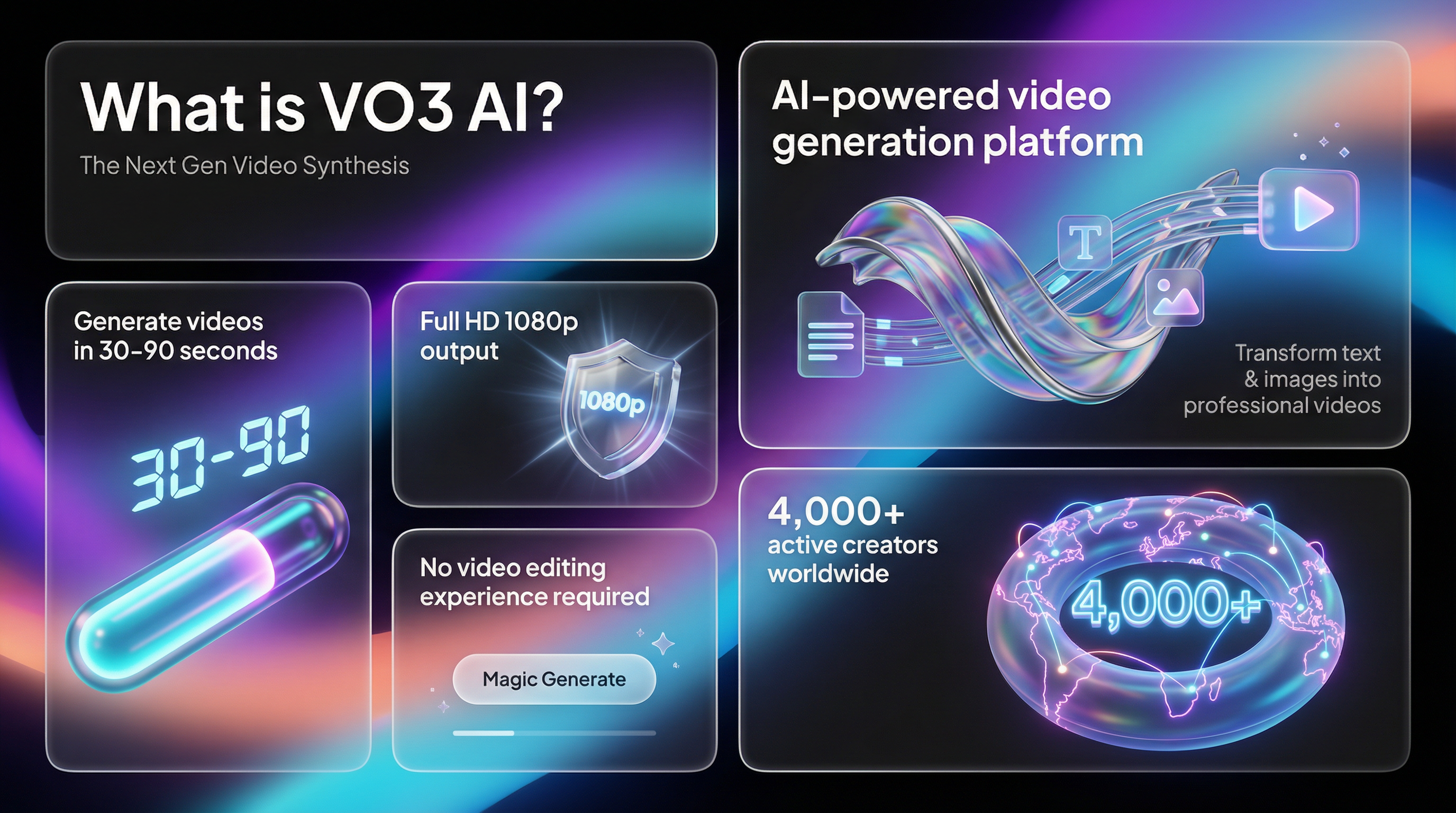
VO3 AI is an AI-powered video generation platform that transforms text descriptions and images into professional-quality videos in minutes.
Key Value Proposition:
- Speed: Generate videos in 30-90 seconds (vs. hours/days with traditional methods)
- Cost-Effective: No need for expensive equipment, actors, or editing software
- Scalability: Create unlimited training content with a single subscription
- Quality: Full HD 1080p output with professional-grade results
- Accessibility: No video editing experience required
Platform Statistics
- 4,000+ active creators worldwide
- Multiple AI models including Google Veo3, Sora 2, and proprietary VO3 models
- Commercial usage rights included with all plans
- No watermarks on generated content
2. Key Features
Video Generation
| Feature | Description |
|---|---|
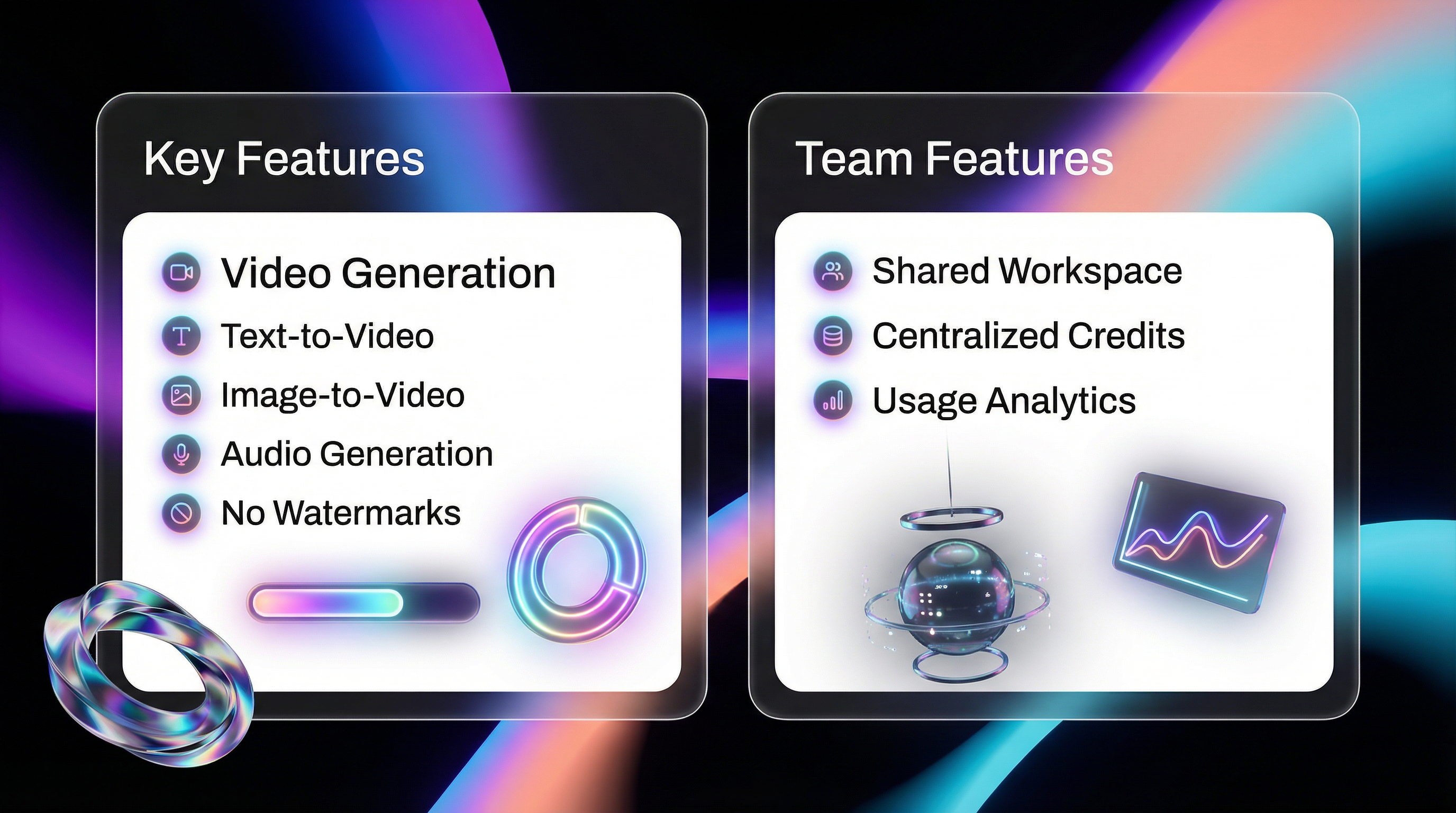
| Text-to-Video | Describe your scene in text, AI generates the video |
| Image-to-Video | Upload an image, AI animates it into a video |
| Audio Generation | Some models include automatic audio/sound effects |
| 1080p HD Quality | Professional-grade output for all content |
| No Watermarks | Clean output ready for corporate use |
Advanced Video Features
| Feature | Description |
|---|---|
| Long Video Editor | Combine multiple clips into longer training videos |
| Continue Scene | Extend videos by generating continuation of the scene |
| Batch Generation | Generate multiple videos at once for efficiency |
| Chat Agent | AI assistant to help with prompts and video creation |
Image Generation
| Feature | Description |
|---|---|
| Text-to-Image | Generate images from descriptions |
| Image-to-Image | Transform and edit existing images |
| Multi-Image Fusion | Combine up to 5 reference images |
| Text Rendering | Clean text on images (50+ languages) |
Team & Collaboration Features
| Feature | Description |
|---|---|
| Shared Workspace | Team-wide content visibility |
| Centralized Credit Management | Single pool of credits for all team members |
| Project Library | Organize and share content across teams |
| Usage Analytics | Track team usage and productivity |
3. AI Models Available
Video Models
| Model | Speed | Quality | Best For | Credits |
|---|---|---|---|---|
| VO3 Basic | ~30s | Good | Quick tests, drafts | 1 credit |
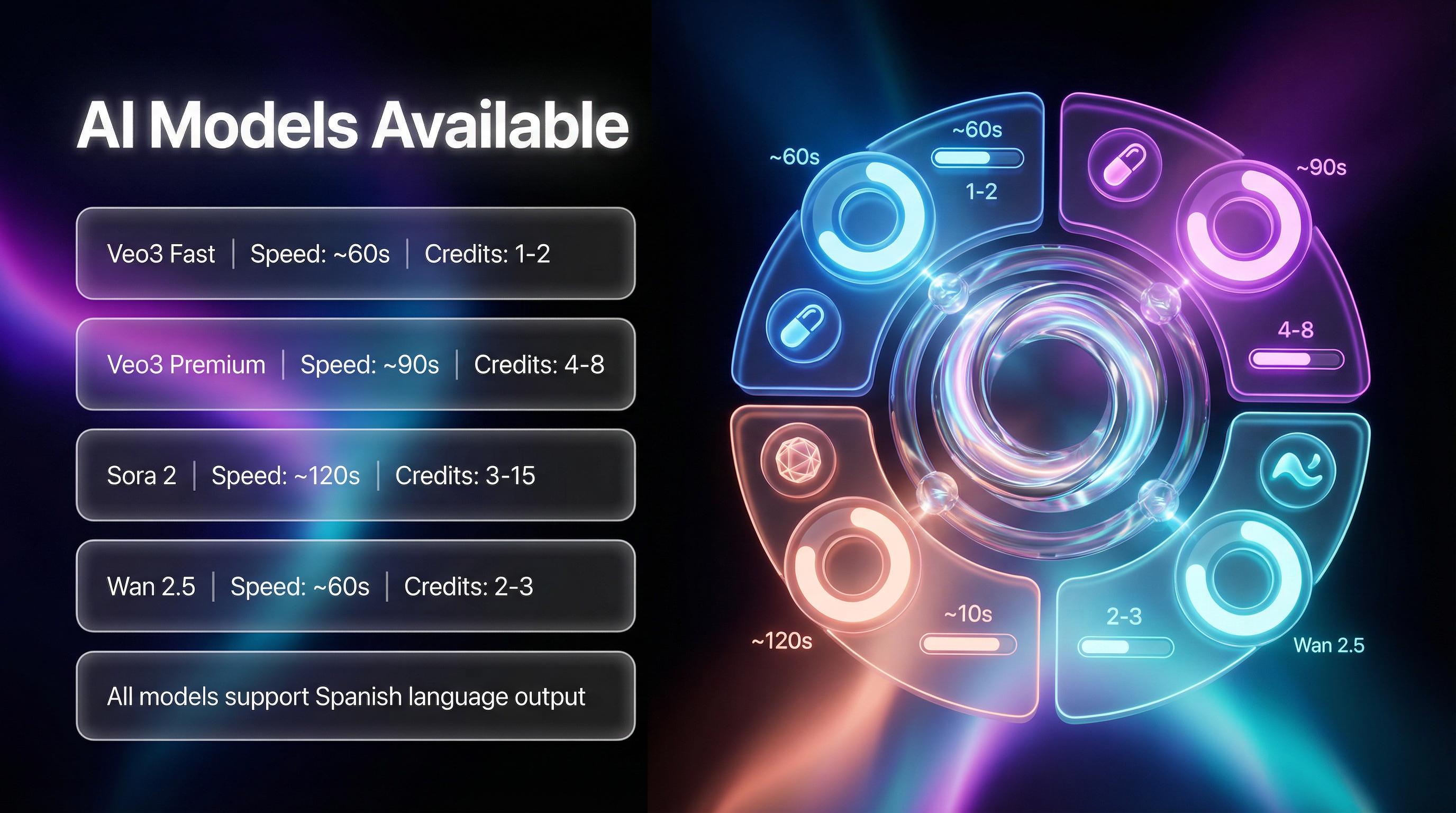
| Veo3 Fast | ~60s | Great | Daily content | 1-2 credits |
| Veo3 Premium | ~90s | Excellent | Professional content | 4-8 credits |
| Veo 3.1 | ~60s | Excellent | All-purpose | 2-4 credits |
| Sora 2 | ~120s | Premium | Creative, unique styles | 3-15 credits |
| Wan 2.5 | ~60s | Great | Audio-integrated videos | 2-3 credits |
| Kling 2.6 Pro | ~90s | Excellent | High-detail content | 3-5 credits |
Image Models
| Model | Quality | Best For | Image Quota |
|---|---|---|---|
| Nano Banana Pro | 4K | Premium quality, text rendering | 3 |
| VO3 Basic | HD | Fast everyday images | 1 |
| VO3 Advance | HD | Multi-image editing | 1 |
| Nano Banana | HD | Anime, illustrations | 1 |
4. How to Use VO3 AI
Step 1: Sign Up & Choose a Plan
- Visit www.vo3ai.com
- Create an account (email or Google sign-in)
- Choose a subscription plan or start with Trial Pack ($2.99)
Step 2: Create Your First Video
Text-to-Video Process:
- Click "Create" in the navigation menu
- Select "Video Creation"
- Choose your AI model (recommended: Veo3 Fast for beginners)
- Write your prompt describing the scene
- Click "Generate"
- Wait 30-90 seconds for your video
- Download or share directly
Example Prompts for Training Videos:
"A professional instructor explaining safety procedures in a modern
factory setting, clear lighting, corporate environment"

"Step-by-step demonstration of hand washing technique in a healthcare
setting, close-up shots, educational style"

"An animated diagram showing the company organization structure,
smooth transitions, professional business theme"
Step 3: Download & Use
- Download in MP4 format (1080p HD)
- No watermarks on paid plans
- Commercial usage rights included
- Integrate into your LMS or training platform
5. Enterprise Use Cases
Corporate Training Videos
- Onboarding Videos: Welcome new employees with engaging visual content
- Safety Training: Create clear, memorable safety procedure demonstrations
- Product Training: Showcase products and features visually
- Compliance Training: Make regulatory content more engaging
- Soft Skills Training: Communication, leadership, customer service scenarios
Marketing & Communications
- Internal Communications: Company announcements, updates
- Product Demos: Visual product explanations
- Social Media Content: Quick promotional videos
- Event Recaps: Transform photos into video summaries
Education (Universidad Rica Use Case)
- Course Introduction Videos: Engaging course previews
- Concept Explanations: Visual demonstrations of complex topics
- Assessment Preparation: Study guide videos
- Achievement Celebrations: Completion certificates and celebrations
6. Creating Training Videos: Step-by-Step
Two Recommended Approaches for Training Videos
Approach 1: AI Instructor Speaking Spanish 🎤
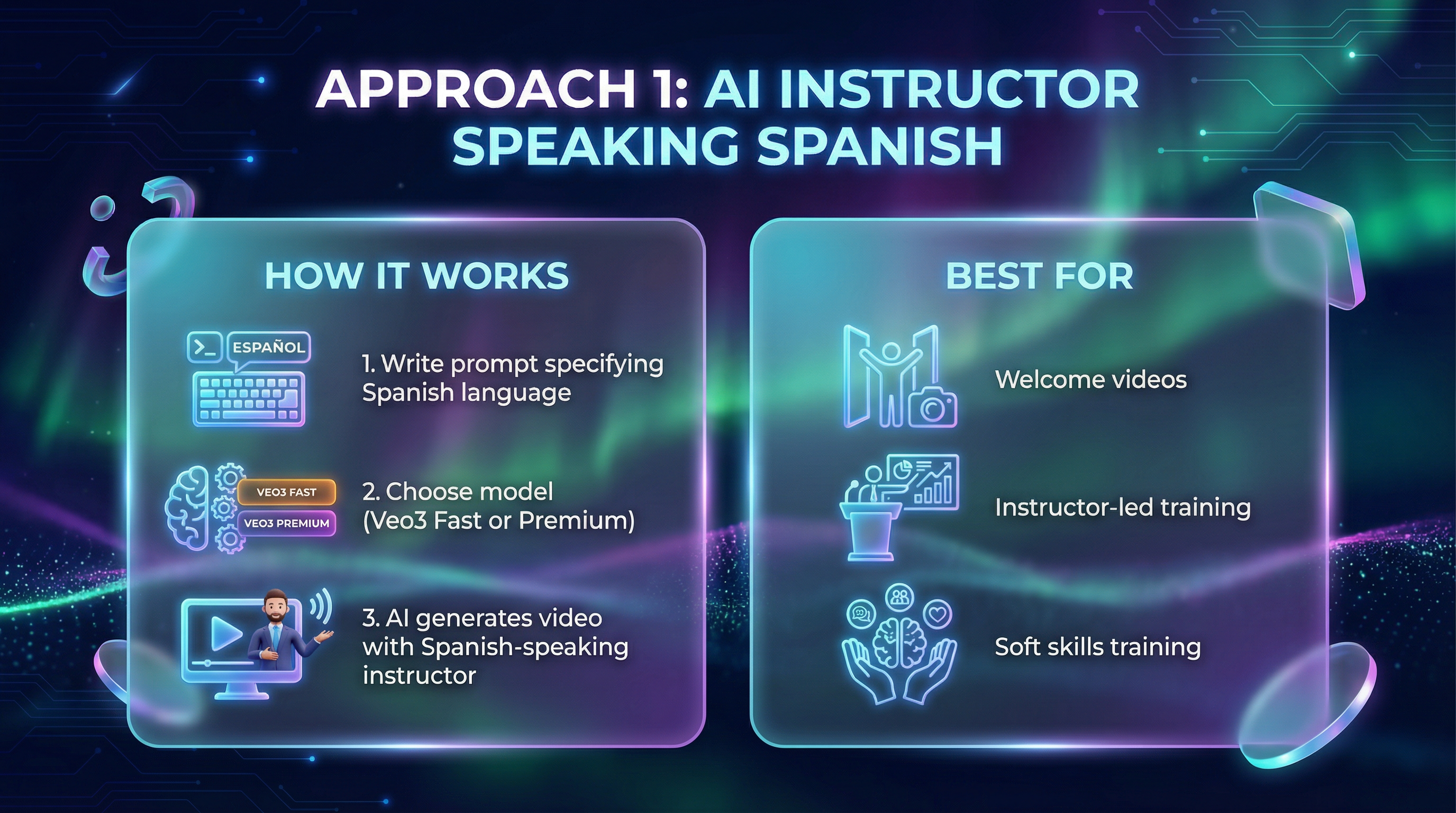
Best for: Instructor-led training, explanations, welcome videos
How it works: Veo3 can generate realistic videos of people speaking in Spanish (or any language). The AI generates both the visual and the audio.
Step-by-Step Process:
- Write your prompt with language specification:
"A professional female instructor in business attire speaking in Spanish,
explaining workplace safety procedures, looking directly at camera,
clear pronunciation, modern corporate office background, warm lighting,
educational training video style"
-
Choose your model:
- Veo3 Fast (1-2 credits): Quick generation, good quality
- Veo3 Premium (4-8 credits): Best quality, natural speech
-
Generate and review:
- Click Generate, wait 60-90 seconds
- AI creates video with Spanish-speaking instructor
- Review and regenerate if needed
Example Prompts for Different Training Topics:
| Topic | Prompt Example |
|---|---|
| Safety Training | "A safety supervisor speaking in Spanish, demonstrating proper use of hard hat and safety glasses in a factory setting, step-by-step instructions" |
| Customer Service | "A friendly customer service trainer speaking in Spanish, explaining how to handle customer complaints, professional office background" |
| Product Knowledge | "A product expert speaking in Spanish, presenting features of beverage production equipment, pointing to diagrams, corporate presentation style" |
| Onboarding | "A welcoming HR representative speaking in Spanish, introducing company culture and values, modern office lobby, warm and professional" |
Credits Estimate:
| Content | Model | Credits per Video |
|---|---|---|
| Draft/Testing | Veo3 Fast | 1-2 |
| Final Version | Veo3 Premium | 4-8 |
Note: The AI generates speech content based on your prompt context. For precise scripts, you may add voiceover in post-production.
Approach 2: Spanish Infographics → Animated Video 📊
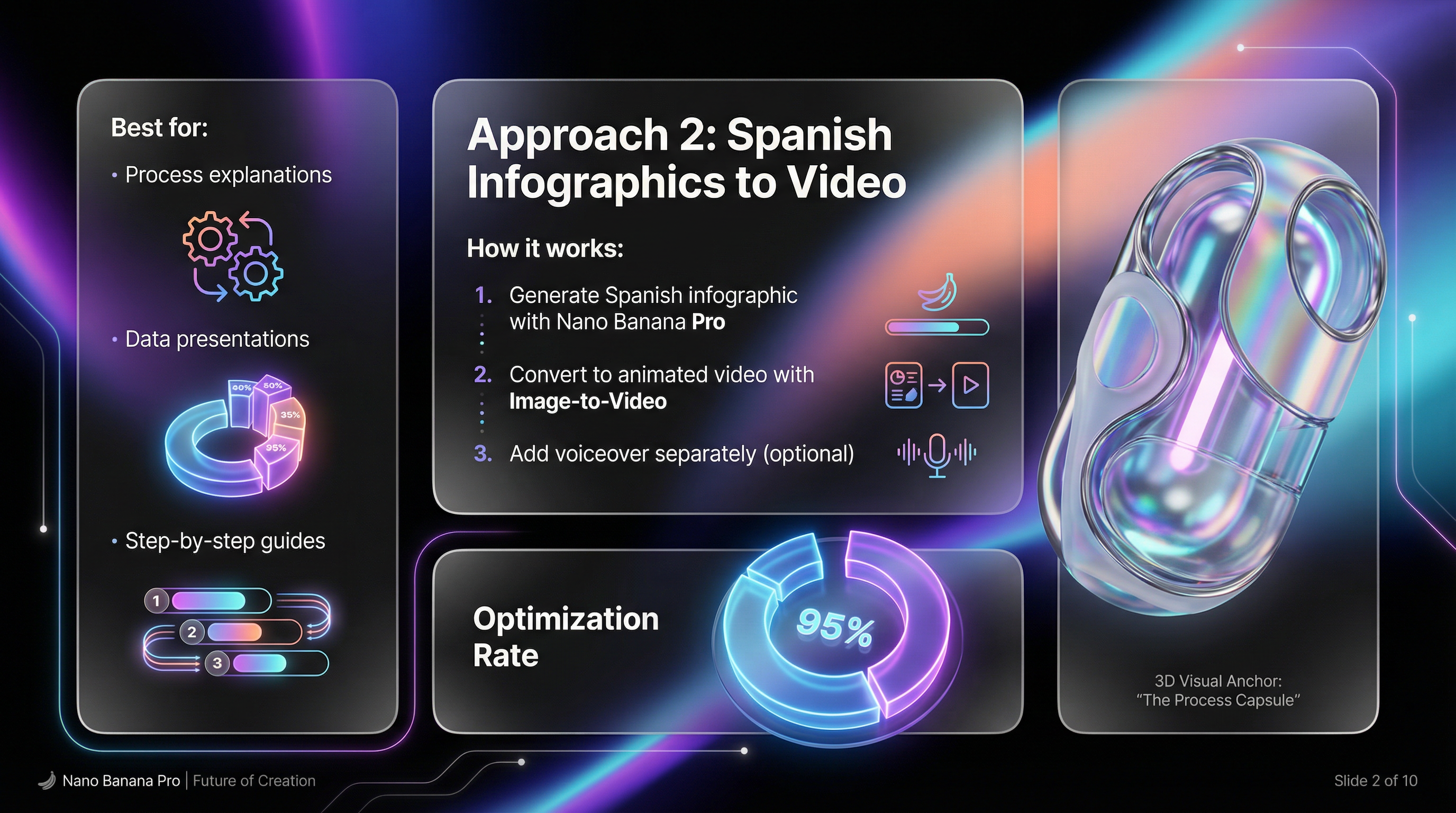
Best for: Process explanations, data presentations, step-by-step guides, PPT-style content
How it works: Generate Spanish-language infographics/slides with AI, then animate them into engaging videos.
Step-by-Step Process:
- Generate Spanish infographic with Nano Banana Pro:
"Professional infographic in Spanish language showing '5 Pasos de Seguridad
Laboral' (5 Workplace Safety Steps), numbered list with icons, corporate
blue color scheme, clean modern design, text clearly readable"
-
Create the image:
- Use Nano Banana Pro (3 image quota = 0.3 credits)
- Supports 50+ languages including Spanish
- Clean text rendering for educational content
-
Convert to video with Image-to-Video:
- Upload your generated infographic
- Use Veo3 Fast or VO3 Advance for animation
- AI adds subtle motion, zoom effects, transitions
-
Optional: Add Spanish voiceover:
- Record narration separately
- Or use TTS tools (ElevenLabs, etc.)
- Combine in video editor
Example Workflow for PPT-Style Training:
| Step | Action | Model | Credits |
|---|---|---|---|
| 1 | Generate title slide image (Spanish) | Nano Banana Pro | 0.3 |
| 2 | Generate 5 content slides (Spanish) | Nano Banana Pro | 1.5 |
| 3 | Animate each slide to video | Veo3 Fast | 6-12 |
| 4 | Combine clips | Long Video Editor | 0 |
| Total | 6-slide animated presentation | ~10 credits |
Best Practices for Spanish Text Generation:
- Write the exact Spanish text you want in the prompt
- Use quotation marks for specific text:
"Seguridad Primero" - Specify font style: "bold title", "clean sans-serif"
- Include color preferences: "corporate blue", "safety yellow"
Comparison: Which Approach to Use?
| Factor | Approach 1: AI Instructor | Approach 2: Infographics |
|---|---|---|
| Best for | Personal connection, explanations | Data, processes, lists |
| Control over content | Medium (AI generates speech) | High (you write the text) |
| Production speed | Very fast | Fast |
| Credits per video | 1-8 | 2-5 |
| Voiceover | AI-generated Spanish | Add separately |
| Recommended for | Welcome videos, soft skills | Technical training, compliance |
Complete Training Module Example
Scenario: Create a 5-part Safety Training Course for Universidad Rica
Module Structure:
| Module | Approach | Content |
|---|---|---|
| 1. Introduction | AI Instructor | Welcome, course overview |
| 2. PPE Equipment | Infographic + Video | Visual guide with Spanish labels |
| 3. Emergency Procedures | AI Instructor | Spoken step-by-step guide |
| 4. Hazard Identification | Infographic + Video | Visual checklist in Spanish |
| 5. Reporting Process | AI Instructor | How to report incidents |
Total Credits Estimate:
| Module | Approach | Credits |
|---|---|---|
| Module 1 | Veo3 Premium | 6 |
| Module 2 | Nano Banana + I2V | 4 |
| Module 3 | Veo3 Premium | 6 |
| Module 4 | Nano Banana + I2V | 4 |
| Module 5 | Veo3 Fast | 2 |
| Total | 22 credits |
With Team/Studio plan (500 credits/month), you can create approximately 20+ complete training courses per month.
Step 5: Export & Deploy
- Download all videos in 1080p
- Upload to your LMS (Learning Management System)
- Track employee completion
Cost Estimate for Training Video Project
| Content | Model | Credits | Videos |
|---|---|---|---|
| 10 Draft Videos | Veo3 Fast | 15 | Testing |
| 5 Final Videos | Veo3 Premium | 30 | Production |
| 5 Logo Animations | VO3 Basic | 5 | Intros |
| Total | 50 credits | 20 videos |
Recommended Plan: Team/Studio ($299.9/month = 500 credits)
- Creates approximately 100+ training videos per month
7. Pricing Plans
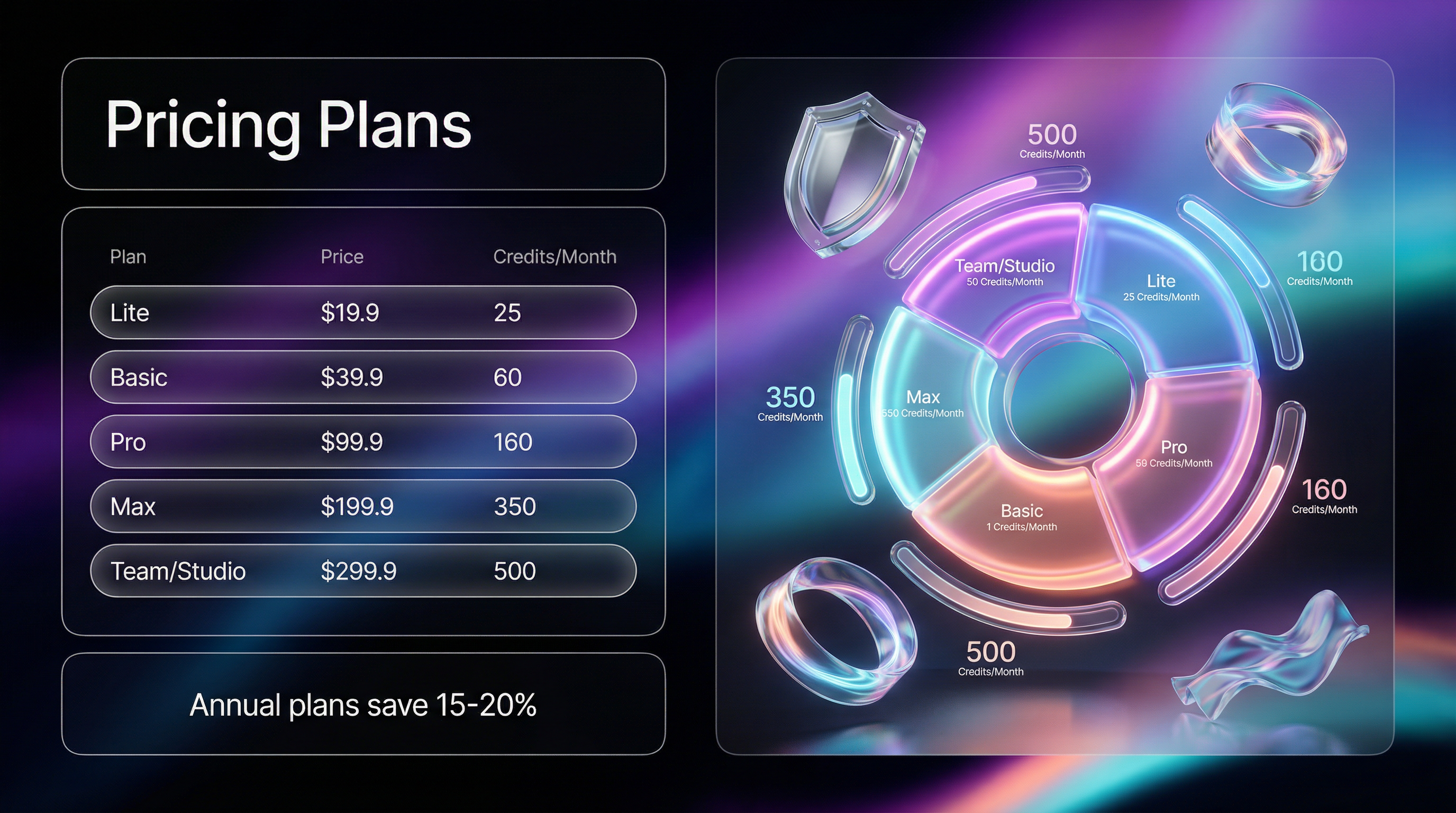
Subscription Plans (Monthly Billing)
| Plan | Price | Credits/Month | Best For |
|---|---|---|---|
| Lite | $19.9/mo | 25 | Individual creators |
| Basic | $39.9/mo | 60 | Regular content creators |
| Pro | $99.9/mo | 160 | Professional creators |
| Max | $199.9/mo | 350 | Heavy users, small teams |
| Team/Studio | $299.9/mo | 500 | Teams & enterprises |
Annual Plans (Save 15-20%)
| Plan | Monthly Cost | Annual Total | Credits/Month |
|---|---|---|---|
| Lite | $19.9 | $238.80 | 35 (+40%) |
| Basic | $33.25 | $399 | 60 |
| Pro | $83.25 | $999 | 160 |
| Max | $166.6 | $1,999 | 350 |
| Team/Studio | $249.9 | $2,999 | 500 |
Pay-As-You-Go Options
| Pack | Price | Credits | Best For |
|---|---|---|---|
| Trial Pack | $2.99 | 3 | Testing platform |
| Mini Flex | $24.9 | 15 | Occasional use |
| Flex Pack | $59.9 | 50 | Project-based |
| Mid Flex | $99 | 110 | Medium projects |
| Flex Ultra | $239 | 300 | Large projects |
8. Enterprise Plan Recommendation
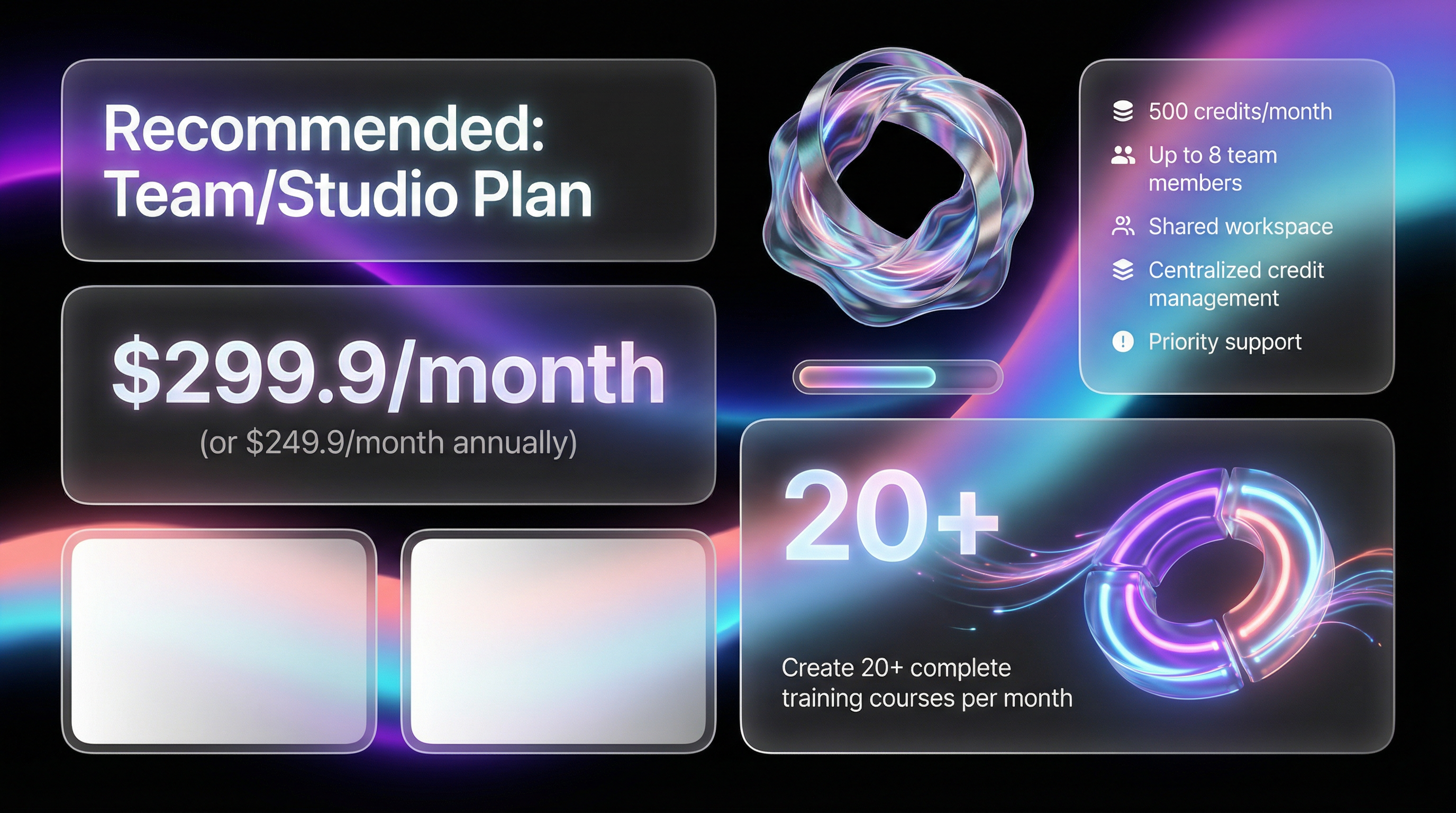
For Universidad Rica / Grupo RICA
Recommended: Team/Studio Plan
Price: $299.9/month (or $249.9/month billed annually)
Why This Plan?
| Feature | Benefit for Universidad Rica |
|---|---|
| 500 credits/month | Create 100-500 training videos monthly |
| 8 team members | IT, HR, Training, Content teams can collaborate |
| Shared workspace | All training materials in one place |
| Centralized credits | No per-person billing complexity |
| Full model access | Use any AI model for best results |
| Priority support | Dedicated account assistance |
| Commercial rights | Use in all internal training |
Monthly Capacity with 500 Credits:
| Content Type | Videos/Month |
|---|---|
| Quick Drafts (1 credit) | 500 videos |
| Standard Quality (2 credits) | 250 videos |
| Premium Quality (4 credits) | 125 videos |
| Mixed (avg 3 credits) | ~165 videos |
Enterprise Custom Plans
For organizations needing:
- More than 8 team members
- Higher monthly volume
- Custom integrations
- Dedicated account manager
Contact: support@vo3ai.com
9. Getting Started
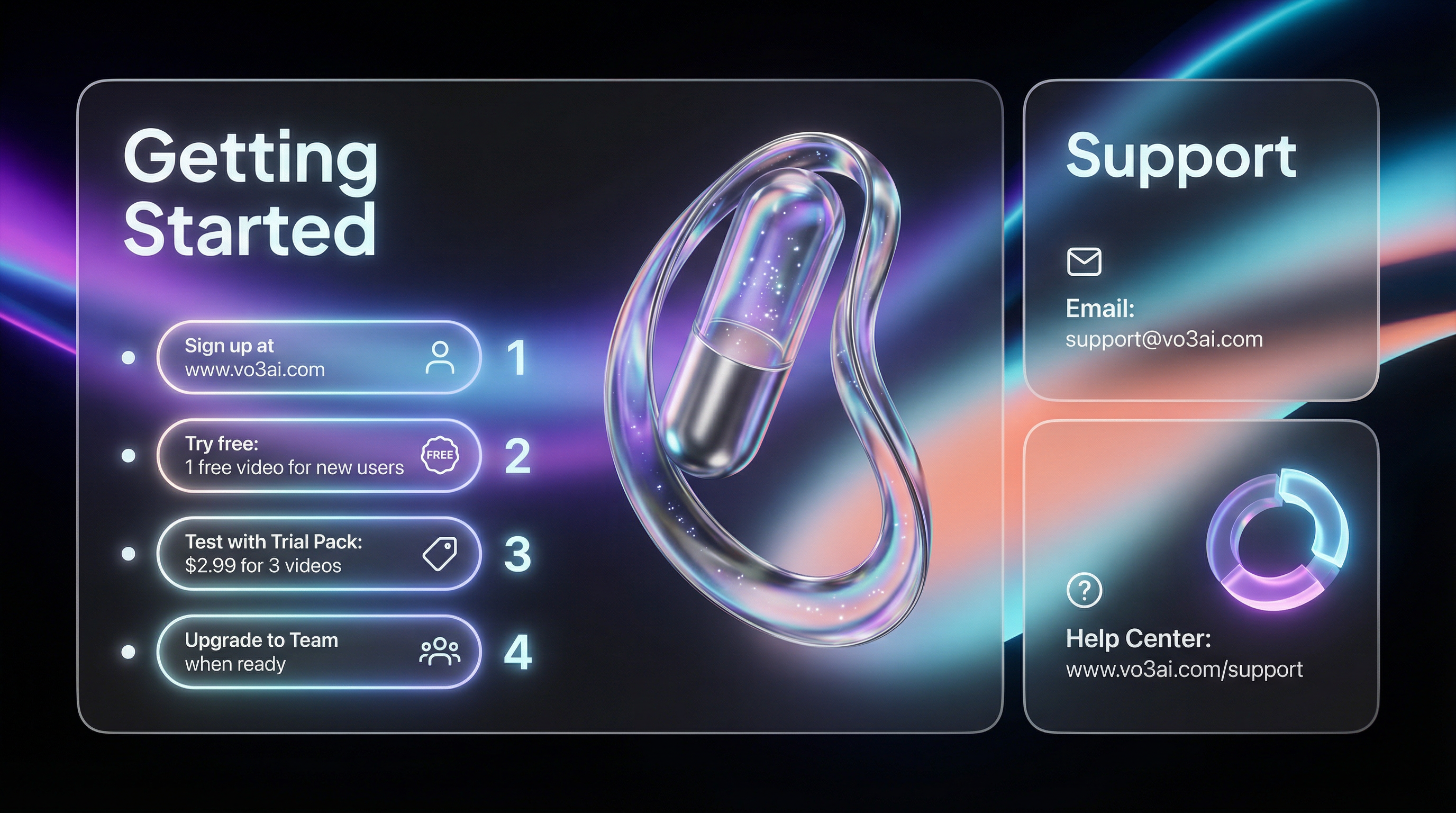
Quick Start Guide
- Sign Up: www.vo3ai.com/sign-up
- Trial Pack: $2.99 for 3 test videos
- Choose your subscription plan
- Upgrade to Team/Studio: For teams and enterprises
Support & Resources
| Resource | Link |
|---|---|
| Help Center | www.vo3ai.com/support |
| Email Support | support@vo3ai.com |
| Prompt Library | In-app prompt templates |
| Video Tutorials | Coming soon |
Next Steps for Universidad Rica
- Today: Try the platform with Trial Pack ($2.99)
- This Week: Create sample training videos
- Evaluation: Review quality and team feedback
- Decision: Choose Team/Studio plan
- Onboarding: Team account setup and training
Contact Information
VO3 AI Team
- Website: www.vo3ai.com
- Email: contact@vo3ai.com
Ready to Create Your First AI Video?
Join thousands of creators worldwide using VO3 AI Video Generator to transform their ideas into stunning videos.
📚 Related Posts:
What is VO3 AI Video Generator: The Ultimate AI-Powered Video Creation Platform
Discover VO3 AI Video Generator - the revolutionary AI video creation platform
Read More →VO3 AI vs. Veo3 — What's the Difference?
Understand the key differences between VO3 AI and Google's Veo3
Read More →How to Use VO3 AI Video Generator: Complete Guide
Master VO3 AI Video Generator with our comprehensive tutorial
Read More →VO3 AI Video Generator - Where imagination meets innovation
Built on top of multiple AI video models including Veo3. Start your creative journey today and join the future of video creation.